Craft a Mind Map in Microsoft Office: Guide for 2026
Microsoft Office is one of the most used software products. It can even offer various platforms, such as Word, PowerPoint, Excel, and many more. What makes the software ideal is its capability to create multiple representations, especially mind maps. With this feature, there is no doubt that Microsoft Office is among the software you can rely on to make an excellent and well-structured output. So, are you interested in learning how to create a mind map in Microsoft Office? Worry no more. We are here to give you the best method you can follow to achieve your desired result. Without anything else, read everything in this guide and learn more.

- Part 1. Significance of Mind Map in Microsoft Office
- Part 2. How to Create a Mind Map in Office
- Part 3. How to Craft a Mind Map on MindOnMap
- Part 4. FAQs about Microsoft Office Mind Map
Part 1. Significance of Mind Map in Microsoft Office
Creating a mind map on Microsoft can give you various benefits. To learn some of them, you can check all the information in this section.
Seamless Integration and Familiarity
Since you already have MS Office on your computer, there is no need for you to learn new and specialized software. You can instantly craft a mind map within the applications, such as Visio, Word, PowerPoint, and more, which you already know. This way, it can reduce the learning curve and save you a lot of time.
Professional Output and Consistency
Mind maps built in Microsoft Office inherit the suite's professional formatting tools. You can easily match your company's branding by using specific color schemes, fonts, and logos, ensuring a polished and consistent look for business or academic reports. The best part here is that you can even customize your mind map based on your preferences and needs.
Enhanced Collaboration
If you have access to the cloud-based Microsoft 365, you can co-author mind maps in real-time. It is perfect if you want to work with your team or partner when making a mind map. You can edit, brainstorm, and comment on the mind map kept in OneDrive, fostering collective ideation and teamwork.
Unlimited Creative Freedom with Shapes and Canvas
We like that you can rely on the tool for more organized brainstorming. It is because the drawing tool in Office offers a blank canvas with complete creative control. You can access freeform shapes, connecting lines, colors, boxes, and more, to craft a non-linear map.
Universal Accessibility and Sharing
The mind maps saved in standard Office formats, such as .docx, .ppt, and .vxdx, are universally accessible. You can share your mind map with other users or and they can open and view it without any compatibility issues. Thus, if you want to create a mind map and share it with anyone, using MS Office software might be ideal.
Part 2. How to Create a Mind Map in Office
Want to create a mind map on Microsoft Office software? In that case, you can check this section. We are going to use Microsoft PowerPoint to create an engaging mind map. What's good about this software is that it has a simple UI, allowing you to access all the functions easily. Plus, you can even make an engaging mind map by adding a theme to your masterpiece. You can also save your mind map in various formats, such as PPT, PDF, JPG, and more. To start the mind map creation process, see the steps below.
The first thing to do is to download Microsoft PowerPoint on your computer. After that, install and run it to begin the process.
From the interface, proceed to the Insert section and click the SmartArt feature. Then, you can tap the Hierarchy option and choose your preferred template.
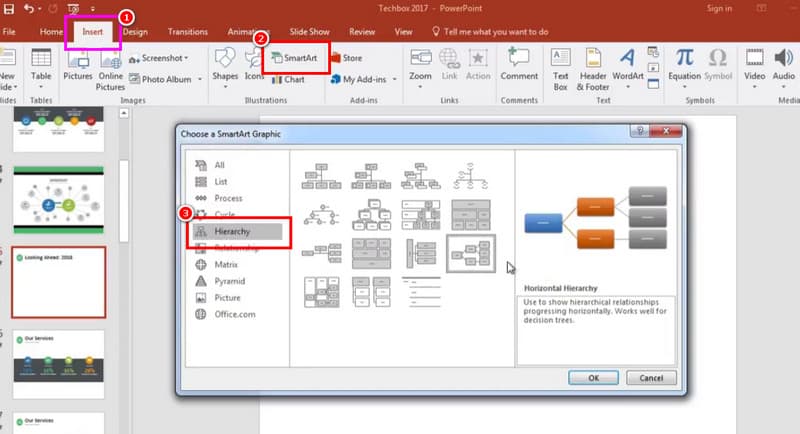
Once done, you can now start inserting all the information you need. You can also change the shape and font color based on your preferences.
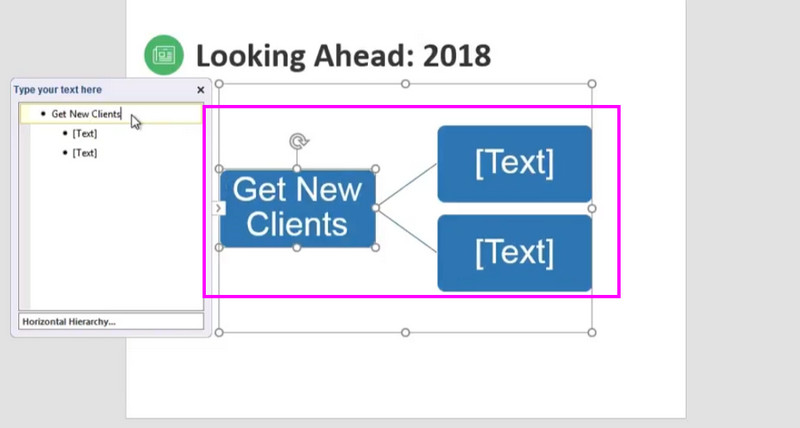
You can now proceed with the saving process. Go to the File section and tap the Save as option to start saving your mind map.
With this process, you can create the best mind map. You can also access all the features you need to get your desired output. Thus, if you want to create a mind map on PowerPoint, follow the methods we have provided above.
Part 3. How to Craft a Mind Map on MindOnMap
Microsoft Office is not free software. You have to create your account and purchase a subscription. So, if you want to make a mind map for free, access MindOnMap. This tool is better since it can give you all the features for free. It also has a simple layout, making it suitable for all users. The good part here is that you can rely on its AI-powered technology to generate the best mind map. In addition, there are also plenty of templates you can access to make a visual representation smoothly and instantly. It can also offer its auto-saving feature, ideal for preventing data loss. With that, MindOnMap is the best mind map maker you can access.
To start creating your mind map, you can use the instructions below.
Tap the buttons below to download and install MindOnMap on your computer. Then, you can create your account.
Secure Download
Secure Download
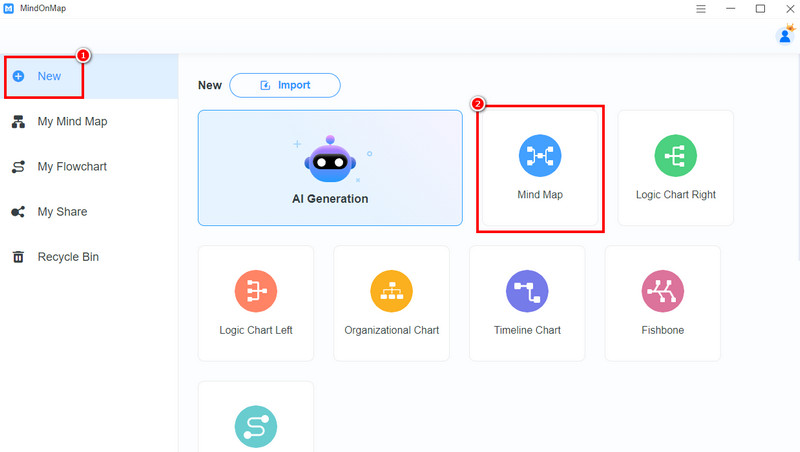
From the primary interface, you can proceed to the New section and hit the Mind Map feature.
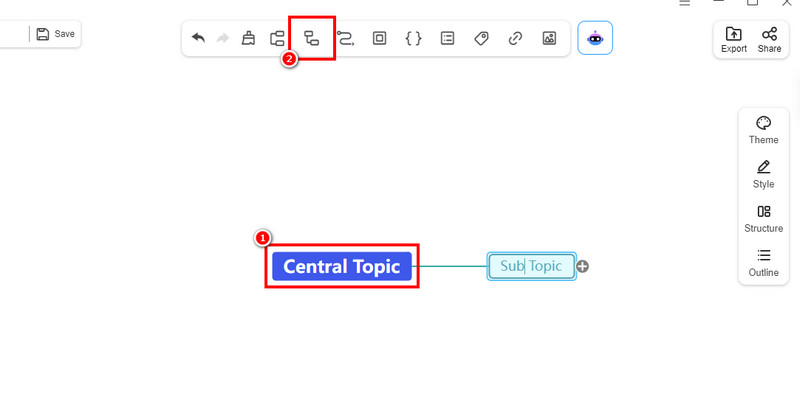
Now, you can start creating your mind map. Tap the Blue box to insert your main topic. Then, proceed to the Sub Node function above to add more boxes.
If you are done making your mind map, start with the saving process. Tap the Save button above to save it on your MindOnMap account.
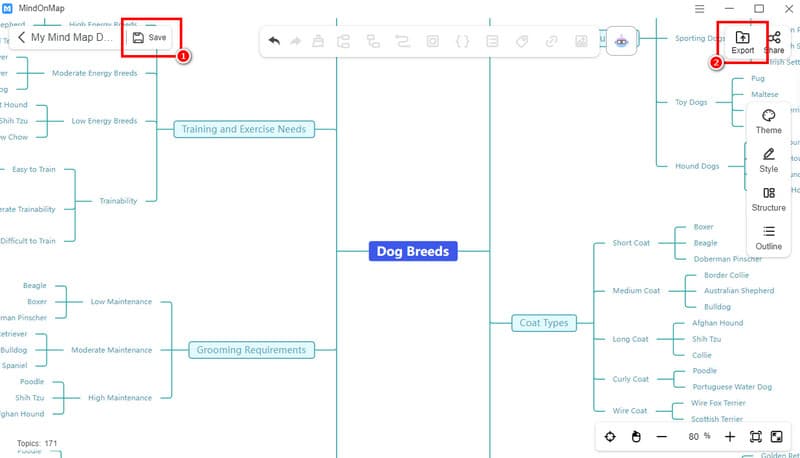
You can also tap Export to save the mind map on your computer in your desired format.
Click here to see the entire mind map designed by MindOnMap.
Thanks to this mind map maker, you can create a mind map for free. You can even access all the features without encountering any issues. Thus, if you want to replace Microsoft Office, MindOnMap is a nice choice.
Part 4. FAQs about Microsoft Office Mind Map
Is Microsoft Office an excellent tool for mind mapping?
Absolutely, yes. The software is ideal in terms of creating various visual representations. It can even offer multiple templates, making it more powerful and remarkable.
What is the disadvantage of using Microsoft Office when mind mapping?
Its only disadvantage is that it is not free. You have to access its subscription plan first before creating your mind map.
Is Microsoft Office safe for mind mapping?
Definitely, yes. Since the tool is a subscription-based software, you don't have to worry about your privacy. The tool ensures that all of your mind maps are safe and won't be shared with other users.
Conclusion
Well, there you go! If you want to create an excellent mind map in Microsoft Office, you can use the methods from this guide. With that, you can craft the best visual representation. However, since the tool is not free, you can use MindOnMap as your alternative. This free mind map creator can offer all the necessary features for an effective mind mapping process. Thus, use this tool and achieve your preferred output.